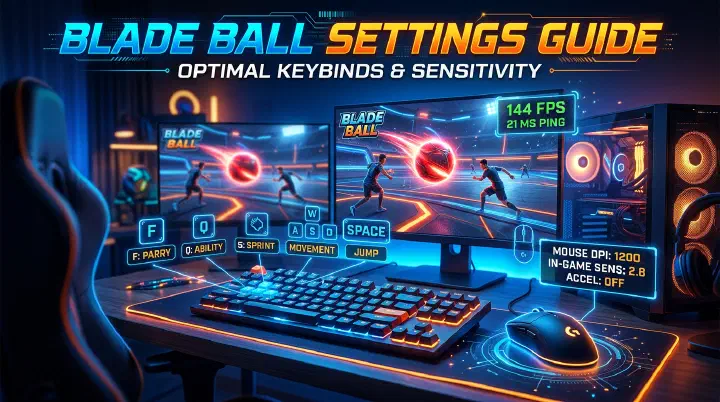
Last updated: July 1, 2026. This guide covers the latest Blade Ball settings, controls, and optimization tips as of July 2026.
You saw the ball coming. You had half a second — plenty of time, really — but your camera was zoomed in way too close, your sensitivity was set so low you had to drag your mouse halfway across the desk just to face it, and by the time your crosshair caught up, you were already watching the respawn screen. It was not a skill issue. It was a settings issue.
In Blade Ball, milliseconds decide everything. The ball accelerates with every deflect, and the gap between blocking and getting knocked out shrinks fast. Your settings and controls are not just preferences — they are competitive gear. A bad configuration creates invisible friction that makes consistent parries nearly impossible, no matter how sharp your reflexes are.
This guide breaks down the exact settings mistakes that ruin players, how to build a setup that fits your hands instead of copying a streamer, and a few counter-intuitive tweaks that actually make the ball easier to track.
Failure Analysis: The Settings Mistakes That Cost You Matches
Most players lose to their configuration before they ever lose to an opponent. Here are the most expensive mistakes we see over and over.
Camera zoomed too far in. A close follow distance makes your sword look cool, but it slashes your peripheral vision. Balls coming from the side or behind arc into your blind spot, and you only see them when it is already too late to pivot.
Sensitivity at the extremes. Way too low and you cannot flick to a fast deflect in time. Way too high and you overshoot the ball every single time, twitching past it instead of stopping on it. Both ends of the spectrum look different but produce the same result: a respawn.
Bad keybinds that force hand movement. If your ability is bound to a key that makes your ring finger leave W or your pinky stretch to the moon, you are adding travel time you cannot afford. Every unnecessary finger lift is a frame lost.
Graphics cranked too high. Pretty shadows and anti-aliasing look nice in the lobby, but in round six they cost you FPS. When the ball is moving at max speed, a drop from 120 FPS to 45 FPS turns a readable trajectory into a teleporting blur. Visual flair hides visual cues.
Music drowning out audio cues. The ball whoosh is one of your earliest warnings. If your music is at 60% and effects are buried, you are reacting to what you see instead of what you hear — and sight is slower.
Controls Overview: What You Are Working With
On PC, the default setup is simple but functional.
- Block / Deflect: Left Mouse Click
- Move: W / A / S / D
- Jump: Spacebar
- Use Ability: Q
- Sprint: Left Shift
- Camera: Mouse movement
- Zoom: Scroll wheel
- Menu: Escape
Mobile uses a virtual joystick on the left and tap or on-screen buttons for block, ability, and jump on the right. Camera control is a drag on the right side of the screen, and pinch gestures handle zoom.
PC is the competitive standard for a reason. Mouse and keyboard give you faster reaction times, finer aim control, and higher frame rates. Mobile is playable, but touch latency and finger obstruction put you at a real disadvantage in high-level lobbies. If you are serious about climbing ranked, switch to PC or at least connect a Bluetooth controller.
Decision Framework: How to Find Your Personal Optimal Settings
Blindly copying a pro player’s sensitivity is one of the most common traps. Their hand size, mousepad space, DPI, and grip style are not yours. What feels like butter to them may feel like mud to you.
Instead, use this three-step framework to dial in your own numbers.
Step 1: Anchor your sensitivity with a benchmark. Enter a private lobby or practice mode. Stand in the center of the arena and pick two fixed landmarks — maybe a tree and a rock. Flick your camera from one to the other ten times. If you consistently overshoot, lower your sensitivity by 0.05. If you consistently undershoot and have to correct, raise it by 0.05. Your goal is to land on the target without a second micro-adjustment.
Step 2: Stress-test under speed. Sensitivity that works in slow lobbies falls apart when the ball is flying. Play three rounds at each test setting and track how many late-round deflections you miss because of aim, not timing. The setting with the highest late-round survival rate wins, even if it feels slightly slower in early rounds.
Step 3: Lock it in for two weeks. Muscle memory hates change. Once you find a sensitivity that passes the stress test, do not touch it for fourteen days. Your consistency will improve dramatically once your arm stops guessing.
For most PC players, the sweet spot lands between 0.4 and 0.7 Roblox mouse sensitivity. Start at 0.5 and iterate. For mobile, phones usually feel best at 5-6, while tablets work better at 3-4 because the larger screen gives you more physical travel distance.
Recommended Keybinds for PC Players
The default binds are fine for casual play, but competitive players make a few targeted swaps.
- Block / Deflect: Keep Left Click. It is the fastest input you have.
- Use Ability: Move this from Q to E or F. Both are easier to reach without shifting your fingers off W. F is especially popular because your index finger rests there naturally.
- Jump: Spacebar is already optimal. Do not change it.
- Sprint: Left Shift is standard and works fine.
- Secondary Ability: Bind to R or a mouse side button if you have one.
If you use a left-hand-optimized setup, Left Ctrl or Left Alt for abilities can work. The rule is simple: if you have to look at your keyboard to find the key, it is wrong. Every ability press should be a reflex, not a hunt.
After changing binds, run at least five practice matches before queuing ranked. Your brain needs reps to remap muscle memory, and a tournament is a terrible place to relearn your hand position.
Graphics Settings: Performance Over Pretty
Frame rate is a competitive setting. The higher your FPS, the more visual information you get between each ball position, which means smoother tracking and easier reads.
Low-end PC or laptop with integrated graphics:
- Graphics Mode: Manual
- Graphics Quality: 1
- Shadows: Off
- Anti-Aliasing: Off
- Texture Quality: Low
- Post-Processing: Off
Mid-range PC with a dedicated GPU like a GTX 1650:
- Graphics Mode: Manual
- Graphics Quality: 5-6
- Shadows: On (Low)
- Anti-Aliasing: FXAA
- Texture Quality: Medium
- Post-Processing: Low
High-end PC with an RTX 3060 or better:
- Graphics Mode: Automatic or Manual
- Graphics Quality: 8-10
- Shadows: On
- Anti-Aliasing: MSAA
- Texture Quality: High
- Post-Processing: On
Even on a powerful rig, if you notice stutter during late-round chaos, drop quality to 3-4 and prioritize stability. A locked 120 FPS on low looks worse than max settings, but it plays infinitely better.
For mobile players, the rules are stricter. Set Graphics Quality to Low, cap or uncap your frame rate to the highest available option, turn off Shadows and Anti-Aliasing, and minimize Render Distance. The arena is tiny — you do not need to see the horizon. A stable 60 FPS on a phone will outperform a stuttering “High” setup every time.
Camera Settings: Seeing the Whole Arena
Your camera is your early warning system. If it is too narrow or too close, you are playing with tunnel vision.
Field of View (FOV):
- Narrow (60-70) gives a cinematic look but hides side attacks.
- Standard (80-90) is the best starting point for most players.
- Wide (95-100) is what most competitive players use. You see more arena at the cost of slightly smaller targets.
- Ultra-Wide (105-120) gives maximum awareness but can feel disorienting if you are not used to it.
Start at 90. If you keep getting hit from angles you did not see, bump it to 95-100. If targets look too small and distant, drop to 80-85.
Camera Follow Distance:
- Close (1-3) makes your character look huge but hides everything behind you.
- Medium (4-7) is the balanced zone. Most players land at 6 or 7.
- Far (8-10) shows the whole arena but makes precision blocks feel harder because your character is tiny.
Set it to 6 or 7. You need enough room to track the ball while still seeing your own hitbox clearly.
Camera Type: Use Follow. Classic has too much lag, and Orbital is not built for this kind of fast-action tracking. Follow stays tight and responsive.
Audio Settings: Do Not Play Deaf
Sound cues give you milliseconds of extra warning. That matters when the ball is at max velocity.
- Master Volume: 70-100%. Keep it loud enough to hear clearly, but not ear-fatiguing.
- Music Volume: 0-20%. Background music competes with the ball whoosh. Turn it down or off.
- Sound Effects Volume: 80-100%. This is your priority channel.
- UI Sounds: 30-50%. Nice to have, not critical.
Wear headphones if you can. Directional audio helps you identify whether the ball is coming from your left or right before it enters your screen. Players on speakers lose that spatial edge.
Counter-Intuitive Advice: Lower Graphics Make You Better
Here is something that sounds wrong but is absolutely true: dropping your graphics to the lowest setting can improve your gameplay more than any sensitivity tweak.
On low settings, particle effects, shadows, and environmental clutter are stripped away. The ball’s trail becomes sharper and more visible against the background. There is less visual noise to parse, so your eyes lock onto the projectile faster. A player on Low at 120 FPS will track the ball more consistently than a player on High at 40 FPS, even if the High player has better raw reflexes.
Another counter-intuitive tip: a slightly slower sensitivity often improves parry consistency more than a fast flick setting. Fast sensitivity feels powerful in the lobby when you are spinning around, but under pressure your fine motor control degrades. A slower, more deliberate sensitivity forces cleaner crosshair placement and reduces the twitchy overshoots that kill you in round five.
One more: disable haptic feedback on mobile. The vibration feels satisfying, but it adds a tiny sensory distraction right when you need 100% focus on the ball’s timing. Turn it off and your blocks will feel crisper.
Mobile Control Best Practices
Mobile players have unique friction, but you can minimize it.
- Use a phone stand instead of holding the device. Stability improves accuracy.
- Enable two-thumb mode. Left thumb on the joystick, right thumb hovering over block.
- Increase on-screen button size if the settings allow it. Misclicks in clutch moments are devastating.
- Lock screen orientation. Accidental rotation mid-match is a free loss.
- Clean your screen before sessions. Smudges cause missed taps.
- Use a matte screen protector for consistent finger glide.
- Keep your battery above 50%. Some devices throttle performance on low power.
- Play in landscape mode. It gives you a wider view of the arena than portrait.
If you have a Bluetooth controller, use it. It is the single biggest upgrade a mobile player can make.
Settings Reset and Backup
If your settings ever feel broken or you want a clean slate, open the in-game menu, hit the Settings gear, scroll to the bottom, and click Reset to Default. The game will restart with factory settings.
If the in-game reset does not stick, close Roblox, press Windows + R, type %localappdata%\Roblox, and delete GlobalBasicSettings_13.xml. Restart Roblox and it will rebuild from scratch. This resets all Roblox game settings, not just Blade Ball, so be ready to reconfigure elsewhere.
Before any reset, write down your preferred values. Keep a simple note with your mouse sensitivity, FOV, camera distance, graphics quality, ability keybind, and volume levels. Restoration takes thirty seconds if you have the numbers saved.
Frequently Asked Questions
What is the best sensitivity for Blade Ball?
Most PC players land between 0.4 and 0.7 Roblox mouse sensitivity. Start at 0.5, test in practice, and adjust in 0.05 increments. Mobile players usually do best at 5-6 on phones and 3-4 on tablets.
Should I play on PC or mobile for competitive Blade Ball?
PC is strongly recommended for competitive play. Mouse and keyboard offer faster reactions, finer aim, and higher frame rates. Mobile is fine for casual matches, but touch latency and smaller screens put you at a measurable disadvantage in ranked.
Why does my game lag during intense late-round moments?
Lower your graphics quality to Manual - Low. Late rounds stack visual effects that crush frame rates. A stable 60-120 FPS is far more important than shadows and texture detail when the ball is moving at max speed.
Related Guides
- Blade Ball Parry Chain Counter Guide — Learn how to survive and counter extended parry chains once your settings are locked in.
- Blade Ball Deflect and Parry Timing Guide — Dial in the exact timing windows for perfect blocks.
- Blade Ball How to Win Guide — Combine optimized settings with advanced match strategy.
- Blade Ball Ranked Climbing Decision Guide — Make smarter decisions under pressure to climb the leaderboard.
Disclaimer: This guide is based on Blade Ball as of July 2026. Game updates may change control schemes, add new settings options, or modify default configurations. Always check the official Blade Ball Wiki for the most up-to-date information. Settings and controls may vary based on your device and Roblox client version.
Sources: