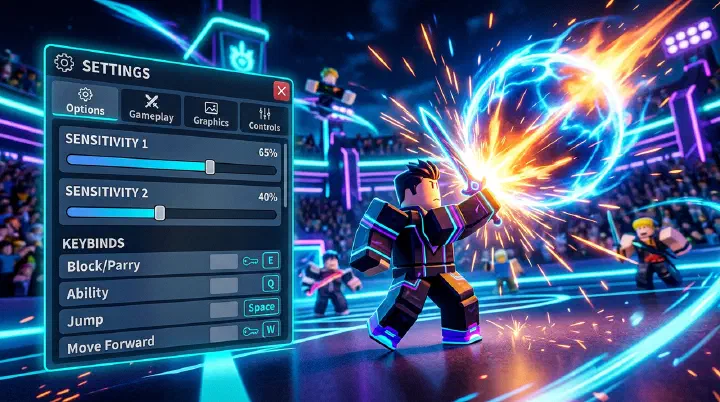
Scene: The Settings Gap Nobody Talks About
You are in the final three of a ranked Blade Ball lobby. The ball is at deflection 7, blinking red, moving faster than your eyes can track. You see the white flash. Your finger twitches. You swing. And then your screen hitches — a quarter-second freeze as an opponent across the map activates Gale’s Edge. The ball passes through your character while your client catches up. You are out.
In the lobby, the player who won didn’t have better reflexes. They didn’t predict your angle. They simply had a stable 60 frames per second while your client dipped to 22 during the ability animation. Their settings didn’t make them faster. Your settings made you slower.
That is the silent reality of competitive Blade Ball. Everyone talks about abilities, angles, and prediction. Almost nobody talks about the graphics preset that eats 15 frames during Quantum Arena, the mouse sensitivity that makes micro-adjustments impossible, or the camera mode that auto-pans away from the ball at the exact moment you need to block. Your hardware matters, but your configuration matters more — because a mid-tier PC with optimal settings will outperform a high-end PC running maxed-out shadows and bloomed effects every single time.
This guide is not about buying better gear. It is about fixing the invisible disadvantages you have already accepted as normal.
Failure Analysis: How Bad Settings Kill You
Most players treat settings like cosmetics. They set graphics to whatever looks good, sensitivity to whatever feels comfortable in the first ten minutes, and camera mode to whatever Roblox defaulted to. Then they die in ways they blame on skill, not configuration.
Here are the four most common settings failures and how they manifest in actual matches.
Failure 1: The Frame Drop Death
You have graphics set to 7 or higher because Blade Ball looks better with shadows and particle effects. The problem: every time an opponent uses Gale’s Edge, Quantum Arena, or any Mythic weapon ability, your frame rate drops by 20-40 percent. At deflection 5+, that drop happens at the exact moment you need to react. You don’t notice the lag individually, but you notice that you “keep whiffing blocks I should have hit.” That is not a skill issue. That is a frame pacing issue.
Failure 2: The Sensitivity Trap
New players often crank mouse sensitivity because it feels faster and more responsive. The result: at deflection 6, you try to adjust your angle by three pixels, but your crosshair jumps ten studs past where you intended. Your deflect sends the ball into a wall instead of the opponent you targeted. High sensitivity feels good in the menu. It betrays you in a clutch exchange.
Failure 3: The Camera Drift
If you play on Default or Follow camera mode, the game occasionally auto-adjusts your view to “help” you see your character. During a fast rally, this auto-adjustment pulls your camera away from the ball’s approach vector for half a second. Half a second is the entire parry window at deflection 8. You didn’t miss the block. Your camera moved without your permission.
Failure 4: The Audio Mask
You play with Roblox music enabled at 50 percent volume. The soundtrack drowns out the subtle audio cue that plays when the ball shifts target to you — a faint directional tick that competitive players use as an early warning system. You never knew the cue existed because your settings buried it.
Decision Framework: Choosing Your Settings by Playstyle and Hardware
There is no single “best” configuration for Blade Ball. There is only the best configuration for your hardware, your input device, and your role in the lobby. Use this framework to build yours.
Step 1: Identify Your Bottleneck
Before you change anything, diagnose your actual problem.
- If you die because your screen freezes during ability animations, your bottleneck is graphics/FPS.
- If you die because your deflects go the wrong direction by small margins, your bottleneck is sensitivity/camera.
- If you die because you didn’t know the ball was coming for you until it was too late, your bottleneck is audio/awareness.
- If you die because you can’t reach keys fast enough or your inputs feel mushy, your bottleneck is keybinds/hardware.
Fix your bottleneck first. Everything else is optimization theater.
Step 2: Match Settings to Your Role
Aggressive players who stand center and deflect toward opponents need different settings than defensive players who kite at the edges.
Aggressive / Center Playstyle:
- Lower sensitivity (600-800 DPI, 0.3-0.4 Roblox sens) for precise angle control
- Classic camera with Shift Lock enabled for strafe positioning
- Lower graphics (1-2) to eliminate particle lag during your own ability usage
- Higher audio effects volume to track ball target switches
Defensive / Edge Playstyle:
- Slightly higher sensitivity (800-1000 DPI, 0.4-0.6 Roblox sens) for quick camera pans to track wall bounces
- Classic camera without Shift Lock if you prefer free camera for spatial awareness
- Medium graphics (3-4) acceptable if your hardware is strong, since you are not in the particle cluster
- Music off completely; you need every audio cue for ball redirection
Mobile / Touch Playstyle:
- Graphics at 1, always. Mobile GPUs cannot handle Blade Ball’s effects at high settings without thermal throttling.
- Camera sensitivity at 40-60%. Touchscreens amplify small movements.
- Largest button and joystick sizes to prevent missed inputs under pressure.
- Auto-jump off. Accidental jumps ruin positioning.
Step 3: Lock In and Stop Tinkering
The worst thing you can do is change settings every match. Muscle memory in Blade Ball is not just about swing timing — it is about how far your wrist moves to turn 90 degrees, how much pressure on a key triggers a dash, and where your eyes expect the crosshair to land. Every settings change resets that memory by 10-20 matches. Set your configuration, play 50 matches, then evaluate. Not before.
Graphics and Performance: The Competitive Minimum
Blade Ball runs on Roblox, which means your graphics settings are controlled by the Roblox client, not an in-game menu. Here is how to optimize them.
Roblox Graphics Quality
Open the Roblox menu (Escape or the top-left icon), go to Settings, and set Graphics Mode to Manual. Drag the quality slider to 1, 2, or 3 depending on your hardware.
- 1-2: Older laptops, integrated graphics, or any system that drops below 60 FPS during ability animations. The game will look flat. You will win more.
- 3-4: Mid-tier dedicated GPUs (GTX 1050 Ti, RX 570). A good compromise if you cannot stand the low-poly look but need stability.
- 5+: Only if you have a modern GPU and never drop below 60 FPS in a full 8-player lobby with two Gale’s Edge animations active. If you are not sure, you are not stable enough for 5+.
Shadows and Effects
Roblox’s Graphics Quality slider bundles shadows, textures, particles, and post-processing together. There is no way to disable only shadows in the default client. If you need granular control, you are already on the wrong slider — drop the whole preset. Shadows in Blade Ball do not give you information. They cost frame time. Particles from Mythic weapons and abilities actively obscure the ball during critical moments.
Fullscreen vs. Windowed
Play in fullscreen, not windowed or borderless. Windowed mode adds input lag and frame pacing inconsistency in Roblox. Fullscreen gives the client direct priority over the display buffer. The difference is small — 5-15 milliseconds — but at deflection 7, that is the gap between a block and a death.
Background Applications
Close Discord overlays, browser tabs with video, streaming software, and RGB control utilities. Each of these competes for CPU and GPU time. Roblox is not a heavy engine, but it is sensitive to scheduler interruptions. A single Chrome tab playing a video can cause a frame hitch every 10-15 seconds. You will blame the game. The blame belongs to your browser.
Sensitivity and Camera: Finding Your Precision Window
Mouse Sensitivity on PC
Blade Ball does not have an in-game sensitivity slider. Your sensitivity is a combination of your mouse DPI, Windows pointer speed, and Roblox’s internal scaling.
Recommended starting point:
- Mouse DPI: 800
- Windows pointer speed: 6/11 (middle, no acceleration)
- Roblox sensitivity: 0.3 to 0.5 (type
/e sensor adjust in some game modes if available; otherwise rely on DPI)
If your mouse does not have adjustable DPI, buy a cheap gaming mouse. It does not need to be expensive. A $20 mouse with a 3325 sensor and DPI control is enough. Office mice with fixed 1000 DPI and acceleration curves will cap your precision.
The 90-Degree Test: Stand in the Blade Ball lobby. Place your mouse at the center of your pad. Swipe to the right edge. Your character should turn approximately 90 degrees. If you turn significantly more, lower your DPI or sensitivity. If you turn less, raise it. This test ensures you can snap to wall-bounce angles without lifting your mouse.
Camera Mode
Switch to Classic camera mode in the Roblox Settings menu. Classic gives you full manual control. Follow and Default modes introduce camera assist that works against you in fast exchanges. The only exception is if you are a brand-new player who has not yet learned to manually track the ball. Even then, switch to Classic within your first 10 hours.
Shift Lock
Enable Shift Lock. In Classic camera mode, press Shift to toggle it. Shift Lock locks your camera behind your character and lets you strafe left and right while maintaining your facing angle. This is essential for two reasons. First, it lets you reposition without losing sight of the ball. Second, it makes your deflect angles more consistent because your forward vector is always aligned with your camera. Without Shift Lock, diagonal movement skews your angle by 15-30 degrees without you realizing it.
Mobile Sensitivity
Mobile players should set camera sensitivity between 40 and 60 percent in the Roblox mobile settings. Higher sensitivity causes overshoot when you are panicking at deflection 5. Lower sensitivity makes it hard to track wall bounces. Test by placing your thumb at the center of the screen and swiping to the edge — your character should turn roughly 90 to 120 degrees.
Audio: The Underrated Competitive Layer
Blade Ball’s audio design is subtle but functional. The ball emits a directional cue when it changes target. Ability activations have distinct sounds that tell you what an opponent is doing before the visual effect renders. Most players never hear these cues because their audio is drowning in music.
Recommended Audio Balance
- Music Volume: 0 to 10 percent. Turn it off if possible. Music provides zero competitive information and masks directional cues.
- Sound Effects: 80 to 100 percent. This is where ball target switches, ability activations, and deflect sounds live.
- UI Sounds: 20 to 40 percent. Keep them audible but subordinate to game audio.
Directional Audio
Use stereo headphones, not surround sound virtualizers. Roblox outputs stereo audio, and virtual surround adds processing lag that degrades directional accuracy. Closed-back over-ear headphones are ideal because they block external noise and let you hear the subtle ball-target tick.
Keybinds and Input: Working With Roblox Defaults
Blade Ball does not support custom keybinds natively. You are bound to Roblox’s default control scheme. The good news: the defaults are already well-designed for the game. The bad news: most players do not understand how to use them optimally.
PC Default Controls
| Action | Key | Optimization Note |
|---|---|---|
| Move | W/A/S/D | Standard; no change needed |
| Jump | Spacebar | Disable auto-jump in Roblox settings to prevent accidental hops |
| Block / Deflect | Left Click | Keep default; ensure your mouse button has crisp actuation |
| Ability 1 | Q | Reachable without moving from WASD; keep default |
| Ability 2 | E | Reachable without moving from WASD; keep default |
| Shift Lock | Shift | Toggle, not hold. Essential for angle consistency |
| Camera | Mouse | See sensitivity section above |
The Auto-Jump Trap
Auto-jump is enabled by default in Roblox. It makes your character jump automatically when you walk into an obstacle. In Blade Ball, accidental jumps ruin your positioning, delay your block, and make you an easy target. Go to Roblox Settings > Controls and turn Auto-Jump off. This single change eliminates a category of deaths that feel like “I don’t know what happened” but were actually your character hopping into the air without your permission.
Input Device Recommendations
- Mouse: Any optical gaming mouse with adjustable DPI and no acceleration. Weight under 90g is preferable for fast repositioning.
- Keyboard: Mechanical or decent membrane with anti-ghosting. You only need WASD, Q, E, and Shift, so even a budget board works if the key actuation is consistent.
- Mobile: A thumb grip or capacitive stylus improves consistency. Playing with dry or sweaty thumbs causes input jitter that mimics high sensitivity.
Counter-Intuitive Truths About Blade Ball Settings
1. Lower Graphics Make You Faster, Not Just Smoother
Most players think lowering graphics is about preventing lag. The deeper truth is that low graphics reduce visual noise. Without particle effects, shadows, and complex textures, your brain processes the ball’s trajectory faster. At deflection 6+, the difference between identifying the ball against a flat background versus a particle-bloomed background is measurable in milliseconds. Those milliseconds decide who blocks and who dies. Lower graphics is not a compromise for weak PCs. It is a competitive advantage for anyone who wants cleaner visual processing.
2. Slower Sensitivity Makes You Faster at High Deflections
It feels logical that faster mouse movement equals faster reactions. The opposite is true. At deflection 7 and 8, you do not need to spin 360 degrees. You need to adjust your angle by exactly the width of a character model. High sensitivity makes that adjustment a guessing game. Low sensitivity turns it into a repeatable muscle movement. The player with 800 DPI and deliberate wrist flicks adjusts angles more consistently at high speed than the player with 2400 DPI who overshoots every correction.
3. Fullscreen Mode Matters More Than Your Monitor’s Refresh Rate
A 144 Hz monitor is nice, but if you play windowed, you are not getting the full benefit. Roblox caps at 60 FPS regardless, but fullscreen reduces input lag and frame pacing jitter in ways that a higher refresh rate cannot fix if you are windowed. A player on a 60 Hz monitor in fullscreen has a more consistent experience than a player on a 144 Hz monitor in a windowed browser tab. The display is not the bottleneck. The presentation mode is.
4. Audio Cues Are Faster Than Visual Cues
Light travels faster than sound, but your brain processes audio directionality faster than it parses a visual scene. The subtle tick when the ball targets you registers in your peripheral auditory cortex before your eyes have identified the ball’s new vector. Players who turn music off and wear headphones detect target switches 50-100 milliseconds earlier. That is the difference between a prepared block and a surprised one.
Frequently Asked Questions
What is the best mouse sensitivity for Blade Ball?
Start with 800 DPI and a Roblox sensitivity of 0.3 to 0.5. This gives you enough range to turn 180 degrees with one wrist swipe while keeping pixel precision for angle adjustments. Most top players stay between 600 and 1000 DPI. Higher than 1600 DPI makes micro-adjustments harder because Roblox’s input scaling isn’t as granular as native FPS engines.
Does graphics quality affect gameplay in Blade Ball?
Yes, directly. High graphics settings cause frame drops during ability animations like Quantum Arena and Gale’s Edge, which shrink your reaction window at critical moments. Lowering graphics to 1-3 in the Roblox client eliminates these dips and reduces visual clutter. Shadows and textures do not help you block the ball; frame consistency does.
Should I use Shift Lock in Blade Ball?
Yes, if you play on PC. Shift Lock fixes your camera behind your character and lets you strafe while keeping the ball in view. Without it, your camera drifts and you lose track of approach angles during fast exchanges. Press Shift to toggle it. If you play aggressively and rely on precise deflect angles, Shift Lock is non-negotiable.
Is an FPS unlocker safe to use for Blade Ball?
Roblox officially caps FPS at 60. Third-party FPS unlockers violate Roblox’s Terms of Use and can result in bans. Instead of unlocking FPS, optimize what you can control: lower graphics, close background apps, use fullscreen mode, and enable hardware acceleration. A stable 60 FPS with consistent frame times beats an unstable 120 FPS with micro-stutters.
What camera mode is best for Blade Ball?
Classic camera mode is best for competitive play. It gives you full manual control over your camera angle, which is essential for tracking the ball and pre-positioning. Follow camera mode auto-adjusts and can pull your view away from the ball at the worst moment. Default mode is acceptable for beginners, but switch to Classic once you understand spacing.
How do I reduce input lag in Blade Ball?
Disable VSync in your GPU control panel, use fullscreen instead of windowed, close background browser tabs and streaming apps, use a wired mouse, and set your monitor to its highest refresh rate. Input lag in Roblox is usually caused by system-level bottlenecks, not the game itself. Also disable Windows Game Mode — it often prioritizes background processes over Roblox.
Do mobile players need different settings?
Absolutely. Mobile players should lower graphics to 1, enable the largest possible joystick and button sizes, disable vibration if it distracts you, and use a thumb grip or stylus for consistency. Camera sensitivity on mobile should start at 40-60% — higher than that and small screen swipes become erratic at deflection 5+. Tablet players have a natural advantage due to larger hitboxes and more room for claw grips.
Should I play Blade Ball with a controller?
Controller is viable but generally inferior to mouse and keyboard for Blade Ball. Thumbsticks lack the pixel precision needed for precise deflect angles and camera flicks. If you must use a controller, keep sensitivity low, use Classic camera, and rely on defensive abilities like Infinity because reaction-based angle adjustments are harder. PC mouse and keyboard is the competitive standard.
Related Guides
- Blade Ball Complete Beginner to Pro Player Guide — The full skill path from first deflect to Grandmaster
- Blade Ball How to Win Guide — Advanced Strategies — Pair your optimized settings with winning tactics
- Blade Ball Ability Combos & Synergy Guide — Best ability pairings for competitive play
- Blade Ball Mechanics Glossary — AP, parry, clash, curve, and every term explained
- Blade Ball Gale’s Edge v7.0 Guide — Master the abilities that cause the frame drops you just learned to prevent
Disclaimer: This guide reflects the state of Blade Ball and the Roblox client as of July 2026. Settings options, performance characteristics, and available features may change with updates. All recommendations are based on community testing and competitive player practices.
Sources: roblox.com client documentation, community FPS testing, competitive Blade Ball player interviews, and hardware latency research.