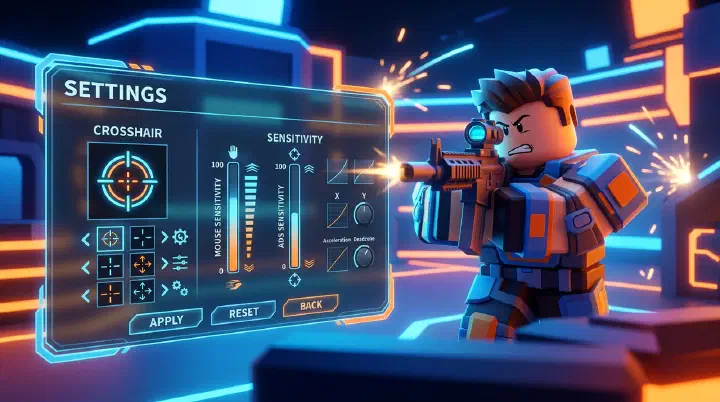
The Clutch You Threw Away in Your Settings Menu
You’re on Warehouse. It’s 4-4, and you’re the last one alive against two. You just downed the first with a clean headshot. Forty HP left. No shield. You hear the second player hard-pushing from B-main, footsteps echoing on the metal grating.
You pre-aim the doorway. Your crosshair is locked at head height. You’re ready.
They swing wide. You flick.
Your mouse travels too far. Your crosshair sails past their shoulder and kisses the wall. You drag back. Too late. They tap you once in the dome and the round ends. Your team says “nice try” but you know the truth: that flick should have landed. You had the time. You had the angle. Your brain sent the right signal, but your sensitivity translated it into chaos.
You queue again. Later, you watch the replay. The frame stutters right as the enemy swings — your FPS drops from 144 to 67 during the muzzle flash of your first kill. Your sensitivity didn’t just betray you. Your frame rate did too. And your white crosshair? It vanished against the pale warehouse wall the exact moment you needed to see it.
This is what bad settings look like in slow motion. Not dramatic. Just quietly expensive. One flick. One frame drop. One invisible crosshair. And the round is gone.
Most RIVALS players think settings are a comfort thing. “I like how it looks.” “It feels fine.” “I copied this from a YouTuber.” That’s not a setup. That’s a lottery ticket. And you’re paying for it every time you queue.
Why Most Players Fail at Settings Optimization
Settings optimization isn’t about finding “good” numbers. It’s about removing variables that fight you. Here are the five failure modes that keep players stuck.
1. The Pro Settings Trap
You open a video called “Top 10 Pro Settings 2026” and copy every number. Sens 0.72. DPI 800. FOV 90. Green crosshair. You expect to become a headshot machine. You become a worse version of yourself instead.
Pro settings are built for pro hands. Their grip. Their desk height. Their mousepad size. Their arm-to-wrist ratio. A player who uses a 50cm pad and arm aims needs a completely different sens than a wrist aimer on a 25cm pad. Copying their numbers is like wearing their prescription glasses. The frames might look cool, but the world gets blurry.
Worse, half those videos are outdated. The pro changed their sens last month. The creator grabbed it from a random Discord screenshot. Now you’re running a ghost configuration in a live meta.
2. The “Good Enough” Trap
You set your sensitivity once in 2024 and never touched it again. You adjusted your graphics when you first installed Roblox and forgot about them. Your crosshair is still the default white dot. Your audio settings have music at 40% because “it hypes you up.”
“Good enough” is the enemy of consistent. Every time you miss a flick by a millimeter, every time your frame rate tanks during a team fight, every time an enemy’s footsteps are drowned out by the soundtrack — that’s a tax. You don’t notice the individual payments. But they add up to a full rank difference over a season.
3. The Graphics Fidelity Trap
Players crank texture quality and shadows because the game “looks better.” In a screenshot, it does. In a gunfight, it kills you.
High shadows create dark corners where enemies hide. Motion blur and post-processing add visual latency. Particle effects from explosions clutter your screen during the exact moment you need clarity. And every graphics slider you push higher steals frames from your firefights. You are literally trading kills for wallpaper.
4. The Sensitivity Isolation Trap
You change your in-game sensitivity without touching your mouse DPI. Or you adjust your FOV without recalibrating your sens. Or you copy an ADS multiplier from a forum without testing if it matches your hipfire feel.
These settings are connected. Changing your FOV changes how fast your camera feels even if your sens number stays the same. Changing your DPI changes your entire input scale. Treating them as independent sliders is like tuning a guitar one string at a time without listening to the chord.
5. The Tweak Loop Trap
You change your sensitivity after every bad game. You drop it 0.1 because you whiffed two shots. You raise it next day because you got flanked and couldn’t turn around. Your muscle memory never gets to settle. After a month, you’ve tried twelve sensitivities and mastered none.
The rule is simple: pick your settings, lock them for two weeks, then evaluate. Anything less is not optimization. It’s anxiety with a settings menu.
The Complete Settings Setup: An 8-Step Framework
Don’t tweak randomly. Run through this checklist in order. Each step builds on the last.
Step 1: Lock Your Hardware Baseline
Before you touch anything in RIVALS, fix your environment.
- Disable mouse acceleration in Windows. Go to Mouse Settings > Additional Mouse Options > Pointer Options. Uncheck “Enhance pointer precision.” This is non-negotiable. Acceleration makes your cursor distance unpredictable.
- Set your mouse to a native DPI. Most gaming mice perform best at 400, 800, or 1600 DPI. Pick one and leave it. Do not change DPI between games.
- Clean your mousepad. A dirty pad creates inconsistent friction. Wash it monthly if it’s cloth. Wipe it weekly if it’s hard surface.
- Close background apps. Discord, Chrome, Spotify, and streaming software steal CPU cycles. Close everything except RIVALS and your comms app.
Step 2: Optimize Graphics for FPS First
Open RIVALS. Go to settings. Your goal is simple: stable frame rate, clean vision.
| Setting | Recommended Value | Why |
|---|---|---|
| Graphics Quality | 3-5 (out of 10) | Enough to see enemies clearly, low enough to hold 120+ FPS |
| Shadows | Off or Low | Removes dark hiding spots and saves frames |
| Anti-Aliasing | Off or FXAA | Minimal jagged edges, zero input lag cost |
| Texture Quality | Medium | Low performance impact, keeps enemies visible |
| Effects Quality | Low | Fewer explosion particles blocking your sight |
| Post Processing | Off | Removes motion blur and bloom |
| Render Distance | Medium | You don’t need to see across the map on most modes |
| VSync | Off | Adds input lag. Always off for competitive play |
Run a deathmatch. Watch your FPS. If it drops below your monitor’s refresh rate during explosions or team fights, lower another slider. Repeat until your minimum FPS never dips below your refresh rate.
Step 3: Set Your FOV
Start at 90. Play for thirty minutes.
If you constantly get flanked and feel like you’re looking through a tunnel, bump it to 95. If you struggle to hit long-range shots because targets look like pixels, drop to 85. Adjust in increments of 5, and play at least three full matches before deciding.
The rule: if you had to choose between seeing more and hitting more, pick hitting more. A wider FOV doesn’t help if you can’t land the shot.
Step 4: Calibrate Your Hipfire Sensitivity
This is the foundation of your aim. Do not rush it.
The 180 Test: Stand in the RIVALS lobby or a private server. Place your mouse at the left edge of your pad. Swipe to the right edge in one clean motion. You should turn exactly 180 degrees. Not 360. Not 120. A clean, reliable 180.
If you spin past 180, your sens is too high. If you don’t reach 180, it’s too low. Adjust in increments of 0.05 until your full pad sweep gives you a comfortable 180 with a little room to spare.
The Tracking Test: Pick a point on a wall — a corner, a crack, a light fixture. Strafe left and right while keeping your crosshair glued to that point. If you stutter and catch up with big swipes, you’re too low. If you overshoot and pull back, you’re too high. You want smooth, tiny micro-adjustments.
The Flick Test: Pick two points one character-width apart. Snap between them ten times. If you consistently overshoot, drop sens by 0.05. If you consistently undershoot, raise by 0.05. Your perfect sens is the one where you land closest without a second correction.
Lock this number. Write it down. Do not change it for two weeks.
Step 5: Set Your ADS and Scope Sensitivity
Your ADS sensitivity should feel slower than hipfire. Not identical. Slower.
Start with a multiplier of 0.6x your hipfire sens. Scope sens at 0.5x. Go into a private server and track a moving target while aimed down sights. If your crosshair falls behind, raise the multiplier by 0.05. If it feels shaky or you overshoot, drop it by 0.05.
The goal is smooth tracking while scoped. If your ADS feels identical to hipfire, it’s too high. Precision requires lower speed.
Step 6: Build Your Crosshair
Your crosshair is your aiming reticle. If you can’t see it, you can’t use it.
Color: Never white, black, or gray. Those are wall colors. Use cyan, bright green, or magenta. Test it against every map background. If it disappears on any surface, change it.
Style: A small static cross with a tiny center gap works for 90% of players. Dots are great for precision but hide recoil bloom. Circles help with tracking but can feel imprecise at range.
Thickness: Thin. If your crosshair line is thicker than an enemy’s head at medium distance, you’re aiming blind.
Dynamic: Turn it off. Dynamic crosshairs expand when you move and shoot. They lie to you. They clutter your screen. Static builds muscle memory.
Step 7: Fix Your Audio
Audio is your second set of eyes. Most players have it configured to lose.
- Master Volume: 80-100%
- Music Volume: 0-10%. Music masks footsteps. Turn it off if you’re serious.
- Sound Effects: 90-100%
- UI Volume: 20-30%. You don’t need loud menu clicks.
Use stereo headphones. Not surround sound virtualization. Not your laptop speakers. Stereo gives cleaner directional audio in RIVALS’s sound engine.
If your headphones have an EQ, boost frequencies between 2kHz and 4kHz slightly. That’s where footsteps and reload sounds live.
Step 8: Lock Everything for Two Weeks
This is the hardest step. Do not touch your settings. Not after one bad game. Not because a streamer said something. Not because you “just want to try” your old sens.
Your brain builds muscle memory through repetition. Changing settings daily is like changing your keyboard layout every morning. You’re not optimizing. You’re erasing.
Play at least twenty matches. Then evaluate. If something still feels genuinely wrong — not uncomfortable, but mechanically broken — adjust one setting by a small amount. One. Not three. Lock again.
Counter-Intuitive Truths About RIVALS Settings
Some of the best settings advice sounds wrong until you live with it.
Your “comfortable” sensitivity is probably wrong. Comfort comes from familiarity, not correctness. A broken-in shoe feels good even when the sole is worn through. Most players are shocked at how much better they aim after dropping their sens by 15% and sticking with it for a week. The initial awkwardness is your brain unlearning bad habits.
Lower FPS makes you miss shots you don’t know you missed. You don’t need to “see” the frame drop for it to matter. At 60 FPS, you get a new frame every 16.6ms. At 144 FPS, every 6.9ms. That 9.7ms gap is the difference between your crosshair being on a head and being on a shoulder when you click. You blame your aim. It was your frame rate.
Shadows off helps you see enemies better, not worse. Players keep shadows on because “it looks realistic.” Realism is the enemy of visibility. With shadows off, enemy models are evenly lit across the map. You spot them faster. You track them cleaner. The game looks flatter. You play better.
Your ADS sensitivity should feel too slow at first. When you first drop your ADS multiplier to 0.6x, it feels like dragging through mud. That’s correct. Hipfire is for flicks and turns. ADS is for tracking and precision. If your ADS feels fast and snappy, you’re sacrificing the stability that wins long-range duels.
The best crosshair is the one you never notice. If you’re thinking about your crosshair during a fight, it’s wrong. Too big. Too distracting. Wrong color. Your crosshair should be invisible until you need it, then instantly visible against any background. If you catch yourself looking at it instead of through it, change it.
The Settings Checklist Before You Queue
Run through this before every ranked session. It takes thirty seconds.
- Mouse acceleration disabled in Windows
- FPS locked to monitor refresh rate or higher
- Shadows off, post-processing off
- FOV set and unchanged for at least two weeks
- Sensitivity passes the 180 test
- Crosshair visible on all map backgrounds
- Music at 0%, sound effects at 100%
- No background apps running
If any box is unchecked, fix it before you queue. Playing with broken settings is practicing failure.
Related Guides
- RIVALS Aim Training Guide — Pair your optimized settings with the 10-minute daily aim routine
- RIVALS Game Sense & Positioning Guide — Settings get you to the fight. Game sense wins it.
- RIVALS Beginner Mistakes Guide — Fix the 15 execution errors that make equipped players lose
- RIVALS Movement Mastery Guide — Combine clean settings with movement that breaks tracking
- RIVALS Weapon Tier List — Match your settings to the best guns in the meta
Disclaimer: This guide reflects the current state of RIVALS as of July 2026. Settings options and performance characteristics may change with updates. All recommendations are based on competitive player practices and in-game testing.