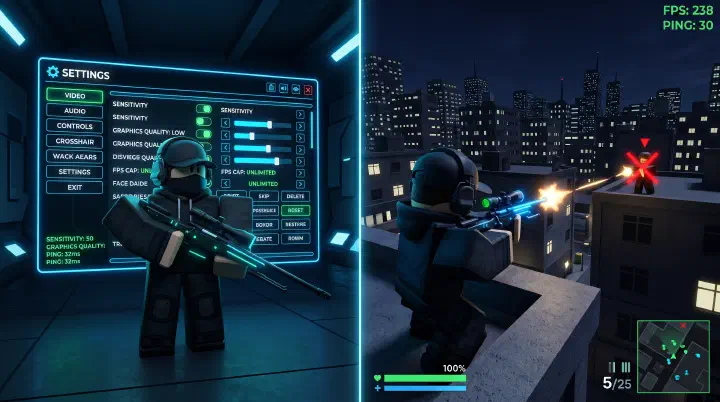
Why Settings Matter in SNIPE
SNIPE is a twitch-shooter where fights end in under 0.5 seconds. Every millisecond of input delay, every stutter when scoping in, every dropped frame during a flick shot — these add up to lost gunfights.
More importantly, SNIPE’s hit registration is server-authoritative. Your client says you hit a headshot, but the server gets final say. When your FPS dips, your client sends fewer updates, and the server rejects shots it didn’t “see” happen. Good settings aren’t about making the game look pretty — they’re about getting your shots counted.
Graphics Settings: Minimum for Maximum Performance
The Competitive Baseline
| Setting | Value | Why |
|---|---|---|
| Graphics Mode | Manual | Auto mode enables shadows at random |
| Shadows | Off | Biggest FPS killer, zero competitive value |
| Textures | Low | Reduces VRAM usage, faster scope-in |
| Anti-Aliasing | Off | Softens edges at the cost of input lag |
| Visual Effects | Off | Muzzle flash particles obscure vision |
| Frame Rate Cap | 144 / 240 / Off | Match your monitor or unlock entirely |
| Render Distance (in-game) | Low or Medium | You can’t snipe what hasn’t rendered |
FPS Impact of Each Setting
| Setting Change | FPS Gain (Average) | Competitive Impact |
|---|---|---|
| Shadows: On → Off | +15-25 FPS | High — removes stutter when scoping |
| Textures: High → Low | +8-12 FPS | Medium — faster scope-in render |
| Anti-Aliasing: On → Off | +5-10 FPS | Low — minor input lag reduction |
| V-Sync: On → Off | Removes frame cap | High — eliminates forced input delay |
| Render Distance: High → Low | +10-20 FPS | Medium — fewer objects to render per frame |
Sensitivity Settings: Find Your Sweet Spot
Mouse Sensitivity (PC)
| Playstyle | Recommended Sensitivity | cm/360 | Best For |
|---|---|---|---|
| Sniper Main | 0.25 - 0.40 | 40-65 cm | Precision headshots, holding angles |
| Hybrid | 0.40 - 0.55 | 30-40 cm | Swapping between sniper and SMG |
| Aggressive SMG | 0.55 - 0.70 | 22-30 cm | Fast flicks, CQB tracking |
The rule of thumb: your sensitivity should let you do a 180-degree turn in one comfortable swipe across your mousepad. If you can do a 360, your sens is too high. If you can barely do a 90, it’s too low.
Controller Settings (Console/Mobile)
| Setting | Recommended Value | Why |
|---|---|---|
| Sensitivity | 6-7 | Higher than most Roblox games because SNIPE’s TTK is fast |
| Response Curve | Linear | Consistent aim feel — Dynamic creates acceleration that throws off flick shots |
| Aim Assist | Enabled | It’s minimal in SNIPE but helps track wall-running targets |
| Dead Zone | 0.05 - 0.10 | As low as your controller allows without stick drift |
Roblox-Specific Performance Tweaks
FPS Unlocker
Roblox caps all games at 60 FPS by default. Install rbxfpsunlocker (open source, trusted by the Roblox competitive community since 2018) to remove this cap. Going from 60 FPS to 144+ FPS in SNIPE reduces input lag by roughly 10-15ms — that’s the difference between a registered headshot and a “how did that miss?” moment.
Roblox Client Settings
Navigate to %LocalAppData%\Roblox\Versions\[version]\ClientSettings and create ClientAppSettings.json:
| |
This tells the Roblox engine to target your actual refresh rate and disables background telemetry that eats CPU cycles.
Windows Optimization for SNIPE
| Setting | Change | Impact |
|---|---|---|
| Power Plan | High Performance | Prevents CPU downclocking during matches |
| Game Mode | On | Prioritizes Roblox process |
| Hardware-Accelerated GPU Scheduling | On (Win 11) | Reduces input latency by ~5ms |
| Mouse Acceleration (Enhance Pointer Precision) | Off | Critical — acceleration ruins muscle memory |
| Background Apps (Discord, Chrome) | Close during ranked | Frees 1-2GB RAM and 5-10% CPU |
Internet & Hit Registration
Understanding Server-Client Desync
SNIPE uses Roblox’s default networking model. Your client predicts where enemies are, but the server corrects your client constantly. When your ping spikes, the gap between what you see and what the server says widens — leading to shots that visually connect but deal zero damage.
| Ping Range | Playability | What Happens |
|---|---|---|
| 0-30ms | Excellent | Near-instant hit registration |
| 30-60ms | Good | Slight delay, still competitive |
| 60-100ms | Playable | Noticeable delay, some shots rejected |
| 100-150ms | Frustrating | Frequent “ghost shots” — hits that don’t register |
| 150ms+ | Unplayable | Don’t queue ranked at this ping |
Improving Your Connection
- Use Ethernet, not Wi-Fi — packet loss on Wi-Fi causes bigger registration issues than high ping
- Select the nearest Roblox server region if SNIPE offers region selection
- Close downloads, streaming, and other bandwidth-heavy apps during play
- If your ISP throttles gaming traffic, try a gaming VPN (ExitLag, WTFast) — but test in casual first
Pro Player Settings Reference
Settings collected from top-100 ranked SNIPE players (May 2026):
| Player Rank | Sensitivity | DPI | Graphics | FPS Cap | Monitor |
|---|---|---|---|---|---|
| #1-10 Average | 0.35 | 800 | All low/off | 240 | 240Hz |
| #11-50 Average | 0.42 | 800 | All low/off | 144-240 | 144-240Hz |
| #51-100 Average | 0.45 | 800-1600 | All low/off | 144 | 144Hz |
Pattern: Every single top-100 player plays with shadows off and textures on low. Zero exceptions.
Quick Tuning Checklist
Before your next ranked session, verify:
- Shadows OFF, textures LOW, anti-aliasing OFF
- FPS unlocker running, hitting consistent 144+ FPS
- Mouse acceleration OFF in Windows
- Sensitivity set so one mousepad swipe = 180 degrees
- Ethernet connected (not Wi-Fi)
- Discord overlay disabled (it adds input lag in Roblox)
- In-game screen shake OFF, render distance LOW